Affichage des articles dont le libellé est Color. Afficher tous les articles

Yellow Color Style Menu Bar For Blogger

Red Color Glossy CSS Menu Bar For Blogger | Blogger Trix | Blogger Tips and Tricks | Free Templates

Multi Color Advanced Css3 Menu Bar For Blogger

Pure Css Text Box With Mouse Over & Copy Text Color Change Effect

Pure Css Text Box With Mouse Over & Copy Text Color Change Effect


As you see below a pure Css text box with mouse over effect That change color while moving mouse around text box also its change color while you copy text inside this text box .This text box is having hover effect which make this software good looking the main advantage of this text box is that it change it color from black to Cornflower Blue when you will mouse over it.And if you click on text box it changes it color to shrek green.The border of the text box having  stitched effect and also having box shadow behind box.

Find out how to make Pure Css Text box-

Its all the about Css & Html.If you know basic of Css & Html the you can make this text box.You don't need to make code as I will provide you.You only need to copy and paste.

How Add This Code In CSS 


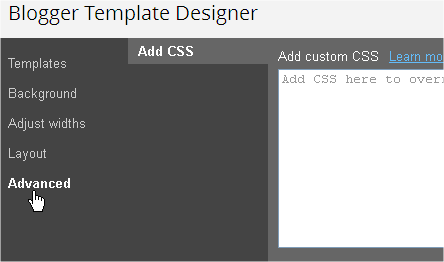
1. Go To Blogger >> Template >> Customise 


2. After Opening  Template Customise Go To Advanced >> Add Css.
3. And there paste the code.


 Paste Following Code In Add Custom CSS Field


.postmsgg23
{
color: white;
background-color: black;
width: 500px;
margin: 5px 60px;
padding: 20px 20px 20px 20px;
border: 2px dotted lightgrey;
border-radius: 10px;
box-shadow: -1px -1px 12px 2px gainsboro;
transition: background-color .777s;
-webkit-transition: background-color .777s;
-moz-transition: background-color .777s;
-o-transition: background-color .777s;
-ms-transition: background-color .777s;
}

.postmsgg23:hover
{
background-color: CornflowerBlue ;

}
.postmsgg23:active
{
background-color: darkgreen ;
}


Paste The Html Section where you want to put Css text box in your Website and Paste the Css section in your website Css.

HTML 


Yout Text Here
 

IF you are facing any problem to add this Pure Css Text Box in Blogger, Feel free to comments here.

Change Gadget Background Color In Blogger Dynamic View

Change Gadget Background Color In Blogger Dynamic View 


Changing Color

Follow below steps to change background color-
  • Go to blogger dashboard
  • Click on Template tab.
  • Now Click on Customize button.
  • Select Advance>>Add Css
  • And Paste below code there
.gadget-icons, .gadget-title, .gadget-content, #gadget-dock, .gadget-menu, .ss{
background: #005896 !important;
color: #FCD927 !important;
}

Here, background attribute represent background of the gadget and color attribute represent font color of the gadget.

Blue color highlighted code is representing background of the gadget and red color highlighted color represent font color of the gadget you can change color of it by generating your favorite hex color code and replacing that code with above code.

How To Change Size, Font Family and Color Of Custom Google Search Engine

How To Change Size, Font Family and Color Of Custom Google Search Engine


Custom Search EngineGoogle Custom Search Engine is another option that Adsense provides to increase your blog revenue. I shared detailed posts on how to create a custom search engine and integrate adsense in it. However the problem with the customization and editing options that Google provides lacks complete control over the margining and padding of the search box. Today we will learn on how to change the look of the search box using our own custom styles and change the size and alignment of the box elements. It is perfectly alright to edit the stylesheet (i.e. CSS Code) of the search engine because it is just a design change and therefore it does not violate any of Adsense terms of service. So lets get going!


DEMO: You will find the Minimalist Theme of the Search box on my sidebar.

Customize Google Search Box

I assume you have already tried our tutorial on Custom Search engines and have installed the search box on your blog sidebars. If not then you may first try them.
  1. Create a Custom Google Search Box
  2. Make Money With Google Custom Search Engine
The code that Google provides you will look slightly similar to this one,
Note: You are not going to use the code shared here. It only gives you idea on how to edit your own Google code for your search engine.
Loading


The CSS code is the one enclosed between the two yellow highlighted lines. This code is responsible for the over all look of your box. To keep things simple we will be focusing only on the three coloured sections of the code and I will refer them as Purple, Orange and Green section.

If you want your search box to look exactly like mine then create a search box as instructed in our previous tutorial and choose the style as "Minimalist" Then replace the first three sections of your CSS code with the ones I shared above as purple, orange and green. That's it.
However if you wish to edit the style of your current search box then you only need to change the CSS properties which are enclosed between the curly brackets i.e. {}
Lets first understand the three sections.
  • The Purple section is responsible for the look of the box that contains the Input rectangle and search button.
  • The Orange section is responsible for look of the input box where users write query.
  • The Green section is then responsible for the look of the Search/Submit button
The purple CSS code is as follows:
.gsc-control-cse {
    font-family: Arial, sans-serif;
    border-color: #ffffff;
    background-color: #ffffff;
  }
In my case I have kept border color as white and background color as white. To Change the border and background colors simply change the hexadecimal code by using our color generator Tool. If you wish to use a background image instead and you wish to change the box height and width then you may alter the same purple code as follows.
.gsc-control-cse {
    font-family: Arial, sans-serif;
    border-color: #ffffff
;


    background: url(ADD IMAGE LINK HERE) no-repeat;
    height:25px;
    width:300px;

  }

Replace ADD IMAGE LINK HERE with image direct link and change the width and height size to suit your alignment.
The Orange CSS Code is as follows:
input.gsc-input {
    border:1px solid #c7c7c7; padding:5px 0px 4px 0px; color:#666;
  }
This will style the rectangular input box where you write query text. Now here we can introduce and change several new styles like font size, font type, text area size, text color etc. You can also set a gap between the text area and the search button using padding. You can make these alterations if you wish else you can use the code in its default form and replace your input section with this orange one. Altered code is:
input.gsc-input {
    border:1px solid #c7c7c7; padding:5px 0px 4px 0px; color:#666;

font-size:12px;
font-family:arial;
font-weight:normal;
  }

I am sure the code is easy enough to be edited. You can choose the following font families as standards: Arial, Verdana or sans-serif. Font weight turns the text thickness. You can choose normal or bold. To change to text color simply change color:#666
The padding is actually the distance between the outline of the input box (Text Area box) and the text. Keep it as default. If you wish to change it then it follows this order:
padding:Top Right Bottom Left; In my case I have set them as padding:5px 0px 4px 0px;
The Green CSS Code is as follows:
input.gsc-search-button {
    border-color: #333333;
    background-color: #333333; margin-left:1px;
  }

This code changes the look and appearance of the Search/Submit button. You can edit it as there is nothing new except the margin property.
A margin is the gap distance between the search button and Text Input Box. You can set other margins too. Altered code is here:
input.gsc-search-button {
    border-color: #333333;
    background-color: #333333; margin-left:1px;

margin-right:0px;
margin-top:0px;
margin-bottom:0px;
font-size:12px;
font-family:Arial;
font-weight:bold;

  }
Start playing with these and keep saving your widget to see the preview.

Need Help?

Try customizing your search box using the simple method shared above. If you needed any help then feel free to let me know. Do share the CSS code of your search box while asking a question. I hope this helps most of you. Peace brothers.