Affichage des articles dont le libellé est sidebar. Afficher tous les articles

How To Add Two Banner In Single Sidebar Widget Of Blogger

Two 120x600 skyscraper Banner in Single Side Bar Widget .
 Two Banner in single sidebar widget may help you to double your adsense income

Hi Bloggiyan! We always try to share something different for blog lovers, Every one want earn money with Ad sense But it really difficult to add adsense banner on blog/website without disturbing page layout with fast loading. as showing in above pic also we are using two banners 120 x 600 skyscraper banner in single sidebar widget, we found that there is no useful article on web regarding adding two different banner in single sidebar widget in blogger. We sharing most easiest way to add 2 banner in single widget . We Are sharing this idea that you can use any format of adsense codes < i frame or java based script code >. Both Format working in double banner in single sidebar.

Easy step to add 2 Banner in single sidebar under HTML widget of blogger

1. Go to blogger dashboard.
2. Click on layout.
3. Choose add a gadget.
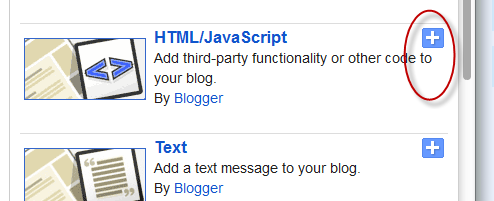
4. Choose HTML/JAVASCRIPT.
5. Copy the below code and paste it.


Your Adsense Code Here 


Your Adsense Code Here 


5. Save Done!

Customization :


1. Change Highlight Text Your Adsense Code Here  With Your Adsenes Codes
2. You can place both codes I frame based or java based .

Comments is best way to encourage any or person or team .

Add Recent Comments Widget For Blogger Sidebar With Image

How To Add Recent Comments Widget For Blogger Sidebar With Image

https://blogger.googleusercontent.com/img/b/R29vZ2xl/AVvXsEj5griLCmovxIssBPJIC7PGQsQ45ye4TlJ8aN2_nFvzwDaIGTOtE8PIXJWbdkgJxlucixKfr-r5Cq0GMHD2CSZWSuVzjtvBuvbSVEMZeYKOx4GyWe69Sxxm0ZFvuY0bRIcu0AdCdoFBcjg/s1600/Recent+Comments+with+Avatar.png

Recent Comments Widget with Avatar for Blogger/Blogspot

 Recent Comments widget with Avatar for Blogger Blogs. Recently Blogger updated the Comments API for   In this widget we can show the Avatar of Commenter using the updated the Comments API. as you seen my Recent Comments Widget, this is looks exactly same to my Recent Comments Widget.
In this Widget i included the Comment Excerpts and Avatar Image. you can choose default Anonymous Avatar Image also.

Take A look :- 


 How To Install The Recent Comments Widget with Avatar For Blogger

Step 1. Go to your Blogger Dashboard >> Layout >> Add a Gadget


Step 2. From the pop-up window, scroll down and choose the HTML/JavaScript option:


  Step 3. Now copy and paste the below code in the HTML/JavaScript box:


Step 4. Replace your-blog-name with your blog url.

Step 5. Click Save and you're done.


Hope you'll enjoy it!
Put AdSense in your blogs sidebar

Put AdSense in your blogs sidebar

Put AdSense in your blog's sidebar 

http://paypalinpakistan.com/wp-content/uploads/2012/11/google-adsense.jpg 

Note: This article assumes you are using a classic template. For Layouts-enabled blogs, you can simply add a new AdSense page element to your sidebar, or drag an existing element to the desired location.
If you're new to AdSense and not too familiar with making modifications to your blog's template, you can follow these instructions for placing AdSense code in your blog's sidebar (using the Minima template as an example).
Assuming you have already signed up and been approved for a Google AdSense account, you should be able to log in here. Once you're signed in, click the AdSense Settings tab near the top of the page. To cut right to the chase, focus on these steps:
  1. Choose Your Ad Layout - To fit ads in your sidebar, it's best to choose one of the following ad layouts.
    Button (125x125)
    Skyscraper (120x600)
    Wide Skyscraper (160 x 600)
    Vertical Banner (120 x 240)
    Small Rectangle (180x150)
  2. Choose a color palette - They are very cleverly named but it's really just a matter of your preference.
  3. Copy your AdSense code - At the bottom of the page, there's a box with code in it. Highlight all of that code and copy it.
  4. Paste the code somewhere - Notepad or Text Edit or something like that is a good place for now.
  5. Go to Blogger.com and sign in - Choose the blog you want to put ads on and click the template tab.
  6. This is less of a step and more of a precaution - Copy your entire Blogger template and save it in Notepad or Text Edit just in case.
  7. Find the place in your template that says this; you might have to scroll down pretty far:

  8. Paste the AdSense code you saved earlier right after that part.

  9. Save your template changes and republish your blog.

How to put Google Affiliate Network links in your blog's sidebar

If you're new to Google Affiliate Network and not too familiar with making modifications to your blog's template, you can follow these instructions for placing Google Affiliate Network links in your blog's sidebar (using the Minima template as an example).
Once you sign up and are approved for a Google Affiliate Network account, you can sign in here to view your account. Once you're signed in, click the Links tab near the top of the page. Select which advertiser's links you want to work with, and then follow these steps:
  1. Choose your links - In the 'Links' section of your profile, select the advertiser whose links you want to use. Click Get Links in the Action drop down menu next to the advertiser's name. Click either the Text Links or the Image Links tab to view your options in each category. To fit ads in your sidebar, it's best to choose one of the following dimensions for an image link:
    Button (125x125) 
    Skyscraper (120x600)
    Wide Skyscraper (160 x 600)
    Vertical Banner (120 x 240)
    Small Rectangle (180x150)
  2. Copy your Affiliate link HTML - Just beneath your desired link, click Get HTML. A box with code in it will appear. Highlight all of that code, then copy and paste it into Notepad, Text Edit, or a similar program.
  3. Sign in to Blogger - Choose the blog you want to put ads on and click the Template tab.
  4. Caution - Copy your entire Blogger template and save it in Notepad or Text Edit just in case.
  5. Find the place in your template that says:

  6. Paste the Affiliate link HTML you saved earlier right beneath that place in the template:

  7. Save your template changes and republish your blog.