Stylish Metro UI Navigation Menu For Blogger Win8 Style UI
Bloggiyan Are you bored with your website’s navigation menu? Does anyone want to revamp his unappealing navigation menu into Windows 8 Style Metro Menu? Navigation menu is one of the core elements of a website because without a user-friendly Menu visitors can’t search the content in depth. In this situation, an ugly Navigation Menu could act a piece of garbage. Therefore, it is essential to have an elegantly style Navigation Menu that attracts a person like a bee to a honey. To provide more power to Blogger users, we have created a new windows 8 look like Metro UI Navigation menu for blogger enabled websites. It has tons of features which we will discuss in today’s article. Are you ready to spice up Your blog with this Sexy Metro UI Navigation Menu Win 8 StyleDo You Know About Metro UI Menu ?
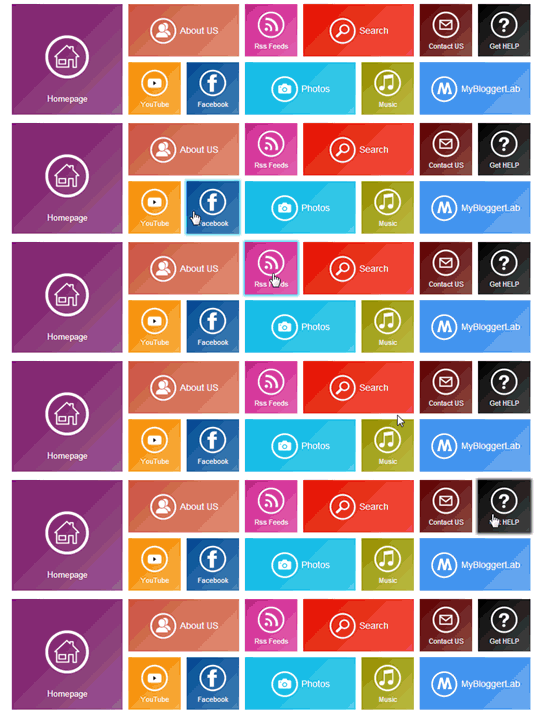
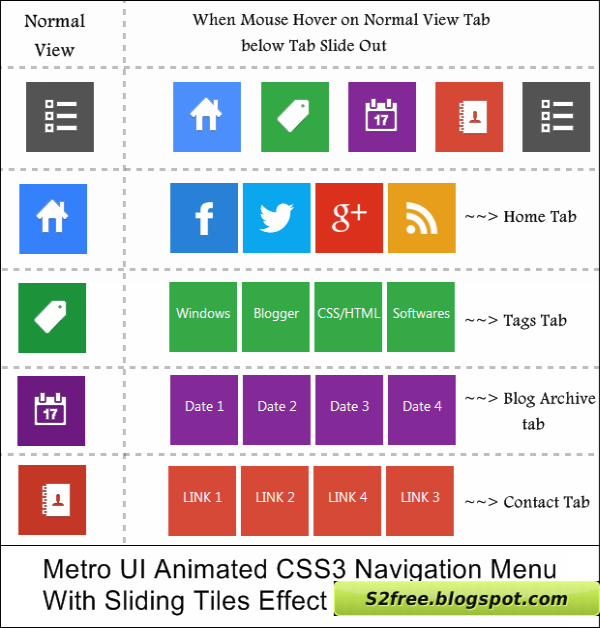
If anyone has experience the interface of Microsoft Windows 8, or the new range of Windows Smart phones, then this METRO UI menu is not a new thing for them. This Menu is inspired from the navigation interface of Windows 8. If anyone is still chaotic about it, then he can check out the following screenshot.
Where The Metro UI Menu Would Appear
It depends on a person that where he wants to utilize this Menu because it is so flexible that it can take shape of any theme or template. However, it would be ideal if anyone places this menu at the top of his website by doing that, visitors can easily access it without facing any hesitation whatsoever. We have attached an interactive Metro menu below so don’t hesitate to try it.
How to Create Windows 8 like Metro Menu in Blogger?
The steps mentioned below are ideal for those bloggers who have less knowledge about HTML coding. Following instructions are extremely straightforward so anyone can easily apply them. Follow following instructions correctly.
Step To Add Metro UI Menu In Blogger
Step#1: Adding CSS StyleSheet:
- Go to Blogger.com >> Template.
- Select Edit HTML >> Proceed.
- Now within the template search for ]]> tag and just above it paste the following CSS Coding. Once, everything is done Save the Template by pressing “Save Template” Button and proceeds to the next step.
/*===MBL METRO UI Menu==*/
body {
font-family:sans-serif;
}
a {
text-decoration:none;
}
.mblmetromenu {
width:960px;
margin:auto;
}
@media screen and (max-width:960px) {
.mblmetromenu {
width:100%;
}
}
/* MblMetroMenu */
.MblMetroMenu {
position:relative;
}
.om-nav {
position:absolute;
width:100%;
z-index:999;
display:none;
}
.om-ctrlbar {
width:100%;
height:48px;
}
.om-ctrlitems {
margin:auto;
padding:0px;
height:48px;
display:inline-block;
text-align:center;
}
.om-ctrlitem {
height:48px;
width:48px;
display:none;
cursor:pointer;
float:left;
opacity:0.5;
-ms-filter: "progid: DXImageTransform.Microsoft.Alpha(Opacity=50)" !important;
filter: alpha(opacity=50) !important; /* For IE8 and earlier */ }
.om-ctrlitem:hover {
opacity:0.8;
-ms-filter: "progid: DXImageTransform.Microsoft.Alpha(Opacity=80)" !important;
filter: alpha(opacity=80) !important; /* For IE8 and earlier */ }
.om-activectrlitem {
opacity:1 !important;
-ms-filter: "progid: DXImageTransform.Microsoft.Alpha(Opacity=100)" !important;
filter: alpha(opacity=100) !important; /* For IE8 and earlier */ }
.om-controlitems {
width:960px;
margin:auto;
}
.om-controlitem {
height:48px;
cursor:pointer;
}
.om-closenav {
float:left;
}
.om-movenext {
float:right;
}
.om-itemholder {
margin:auto;
padding:20px 0px;
}
@media screen and (max-width:960px) {
.om-closenav {
position:absolute;
z-index:9999;
left:0;
top:0;
}
.om-movenext {
position:absolute;
z-index:9999;
right:0;
top:0;
}
.om-controlitems {
width:100%;
}
.om-itemholder {
width:100%;
}
}
.om-centerblock {
display:inline-block;
}
.om-item {
display:none;
}
.om-showitem {
margin:5px;
float:left;
display:none;
}
/* END MblMetroMenu */
/* TILE BUTTONS */
/* Standar Buttons */
.tile-bt {
text-align:center;
cursor:pointer;
width:90px;
height:90px;
}
.tile-bt a {
display:block;
padding-top:12px;
text-decoration: !important;
}
.tile-bt img {
margin:0 auto 0 auto;
padding-bottom:5px;
height:48px;
width:48px;
position:relative;
display:block;
}
.tile-bt span {
font-size:12px;
padding-bottom:10px;
display:block;
}
.tile-bt:active {
opacity:0.5;
}
/* End Standard Buttons */
/* Large Buttons */
.tile-bt-large {
width:190px;
height:90px;
line-height:90px;
text-align:center;
cursor:pointer;
}
.tile-bt-large a {
display:block;
text-decoration: !important;
}
.tile-bt-large img {
vertical-align: middle;
margin:auto;
padding:0px;
position:relative;
width:48px;
height:48px;
}
.tile-bt-large span {
vertical-align: middle;
display:inline;
}
.tile-bt-large:active {
opacity:0.5;
}
/* End Large Buttons */
/* Extralarge Buttons */
.tile-bt-extralarge {
text-align:center;
cursor:pointer;
width:190px;
height:190px;
}
.tile-bt-extralarge a {
display:block;
padding-top:52px;
text-decoration: !important;
}
.tile-bt-extralarge img {
margin:0 auto 0 auto;
padding-bottom:22px;
height:80px;
width:80px;
position:relative;
display:block;
}
.tile-bt-extralarge span {
font-size:14px;
padding-bottom:20px;
display:block;
}
.tile-bt-extralarge:active {
opacity:0.5;
}
/* End Extralarge Buttons */
/* END TILE BUTTONS */
/* SHADOW LIST */
.shadow-white, .shadow-black, .shadow-blue, .shadow-green, .shadow-red {
/*display:inline-block;*/
}
.shadow-white:hover {
box-shadow:0px 0px 6px 3px #fff;
-webkit-box-shadow:0px 0px 6px 3px #fff;
-moz-box-shadow:0px 0px 6px 3px #fff;
-o-box-shadow:0px 0px 6px 3px #fff;
-ms-box-shadow:0px 0px 6px 3px #fff;
}
.shadow-blue:hover {
box-shadow:0px 0px 6px 3px #38D1F7;
-webkit-box-shadow:0px 0px 6px 3px #38D1F7;
-moz-box-shadow:0px 0px 6px 3px #38D1F7;
-o-box-shadow:0px 0px 6px 3px #38D1F7;
-ms-box-shadow:0px 0px 6px 3px #38D1F7;
}
.shadow-green:hover {
box-shadow:0px 0px 6px 3px #AACA37;
-webkit-box-shadow:0px 0px 6px 3px #AACA37;
-moz-box-shadow:0px 0px 6px 3px #AACA37;
-o-box-shadow:0px 0px 6px 3px #AACA37;
-ms-box-shadow:0px 0px 6px 3px #AACA37;
}
.shadow-red:hover {
box-shadow:0px 0px 6px 3px #E81750;
-webkit-box-shadow:0px 0px 6px 3px #E81750;
-moz-box-shadow:0px 0px 6px 3px #E81750;
-o-box-shadow:0px 0px 6px 3px #E81750;
-ms-box-shadow:0px 0px 6px 3px #E81750;
}
.shadow-black:hover {
box-shadow:0px 0px 6px 3px #444;
-webkit-box-shadow:0px 0px 6px 3px #444;
-moz-box-shadow:0px 0px 6px 3px #444;
-o-box-shadow:0px 0px 6px 3px #444;
-ms-box-shadow:0px 0px 6px 3px #444;
}
/* END SHADOW LIST */
/* BACKGROUND LIST */
/* Solid Colors */
.solid-blue { background:#00BBE2; }
.solid-blue-2 { background:#2C84EE; }
.solid-darkblue { background:#044E94; }
.solid-violetred { background:#781766; }
.solid-red { background:#E51400;}
.solid-red-2 { background:#E81750; }
.solid-pink { background:#FF539B; }
.solid-purple { background:#D02090; }
.solid-orange { background:#FB8F02; }
.solid-orange-2 { background:#FF6600; }
.solid-orange-3 { background:#DD5F37; }
.solid-coral { background:#CD5B45; }
.solid-green { background:#67B239; }
.solid-green-2 {background:#96BF01; }
.solid-darkgreen { background:#016C38; }
.solid-olive { background:#999900}
.solid-grass { background:#CDCD00; }
.solid-darkred { background:#5F0000; }
.solid-gold { background:#FEE9AE; }
.solid-yellow { background:#F7D100; }
.solid-black { background:#000; }
.solid-smoke { background:#F5F5F5; }
/* End Solid Colors */
/* MISC */
.clearspace { clear: both; }
.floatleft { float:left; }
.floatright { float:right; }
.none { display: none !important; width:0px !important; }
.light-text {
color:#fff;
}
.dark-text {
color:#1e1e1e;
}
.gradient {
background: -moz-linear-gradient(-45deg, rgba(255,255,255,0) 0%, rgba(255,255,255,0.3) 100%); /* FF3.6+ */
background: -webkit-gradient(linear, left top, right bottom, color-stop(0%,rgba(255,255,255,0)), color-stop(100%,rgba(255,255,255,0.3))); /* Chrome,Safari4+ */
background: -webkit-linear-gradient(-45deg, rgba(255,255,255,0) 00%,rgba(255,255,255,0.3) 100%); /* Chrome10+,Safari5.1+ */
background: -o-linear-gradient(-45deg, rgba(255,255,255,0) 0%,rgba(255,255,255,0.3) 100%); /* Opera 11.10+ */
background: -ms-linear-gradient(-45deg, rgba(255,255,255,0) 0%,rgba(255,255,255,0.3) 100%); /* IE10+ */
background: linear-gradient(-45deg, rgba(255,255,255,0) 0%,rgba(255,255,255,0.3) 100%); /* W3C */
}
.margin-5 { margin:5px; }
Step#2: Adding METRO Menu in Blogger:
Now it entirely depends on a person where he wants to place this menu. The ideal place of adding it would be just under the header . Therefore, paste the following coding anywhere you want to see this Menu on your site.
All Done: Indeed straightforward? Well, that’s all. The responsive Windows 8 look like navigation menu has been integrated in your website. Remember: This Menu can be used on any Platform that supports HTML or CSS i.e. WordPress, Jhoomla and etc.